Showing posts with label Adobe Illustrator. Show all posts

Sunday, 20 June 2021

21 Advanced Photoshop Tips, Tricks and Tutorials Roundup

 Even if you are really familiar with Photoshop, you’ll always find ways to master and evolve your skills further. I’ve compiled a ton of Photoshop articles which will give you different tips on how to use and improve your Photoshop skills, as well as teach you some new techniques that you may not know.

In this article, you’ll find several simple but effective photo enchancing techniques on topics such as how to choose the best image format for web or how to create croplet for repeatedly image editing process.

You can never stop improving your web and graphic design skills, you can always find something new and handy as you’ll see in the following collection.

1. 10 Steps to Improving Your Photoshop Skills

Ten useful tips that will improve your Photoshop skills such as subscribing to galleries and forums and reading magazines.

10 Steps to Improving Your Photoshop Skills - screen shot.

2. 9 Essential Principles for Good Web Design

Web design can be deceptively difficult as it involves achieving a design that is both usable and pleasing, delivers information and builds brand, and is technically sound and visually coherent.
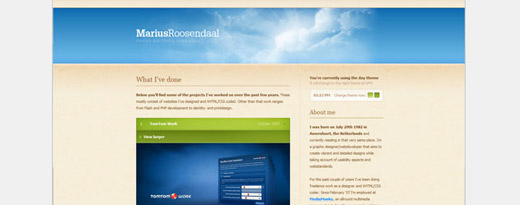
9 Essential Principles for Good Web Design - screen shot.

3. 6 Photoshop Tips and Tricks That You Probably Don’t Know About

Here are 6 Adobe Photoshop tips and tricks that you probably don’t know about (I bet you don’t know at least one).

6 Photoshop Tips and Tricks That You Probably Don’t Know About - screen shot.

4. Hodgepodge of Photoshop Tricks

Chris Coyier offers very useful Photoshop tricks in this 36-minute long screencast.

Hodgepodge of Photoshop Tricks - screen shot.

5. Photoshop Tips & Tricks – Variety Pack Volume 1

Here is a collection of useful tips and tricks to improve your Photoshop skills.

Photoshop Tips & Tricks - Variety Pack Volume 1 - screen shot.

6. How to choose the right image format?

Learn how to choose the right image file format (BMP, GIF, JPG and PNG) for different cases on the web.
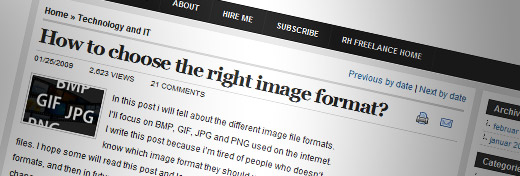
How to choose the right image format? - screen shot.

Editor’s Note: The above tutorial above is no longer available.

7. Removing Image Backgrounds in Photoshop: Magic Extractor Tool

Removing Image Backgrounds in Photoshop:Magic Extractor Tool - screen shot.

8. 15 Tutorials for Recreating Authentic Photo Effects

15 Tutorials for Recreating Authentic Photo Effects - screen shot.

9. Enhancing Photos with High Pass Filter

Tutorial using the Shadows/Highlight adjustments showing how you can easily simulate a sort of HDR style.

Enchancing Photos with High Pass Filter - preview.

10. The hidden power of Photoshop brush tool

Adobe Photoshop Brush tool is very powerful and this tutorial explains several useful features in it. To learn all features, you can simply open the Brush palette (Window menu – Brushes), change each setting and try the result when you draw a stroke.

The hidden power of Photoshop brush tool - screen shot.

11. Photoshop CS4: Droplets

In video tutoria, you’ll learn how to create a Droplet in Photoshop and how it can help improve your workflow!

Photoshop CS4: Droplets - screen shot.

12. Photoshop: Smart Filters

Learn how to use smart filters in this advanced video tutorial.

Photoshop: Smart Filters - screen shot.

13. “Background Eraser Tool” is the new Magic Wand

This tutorial explains how to use a very little known Photoshop tool call “Background Eraser Tool”. It’s a super useful tool for removing background colors while preserving the main picture that you want. It’s pretty simple so you can start using it immediately after the tutorial.

"Background Eraser Tool" is the new Magic Wand - screen shot.

14. 10 Photoshop Techniques You Can’t Work Without

Learn 10 advanced techniques you may not know about.
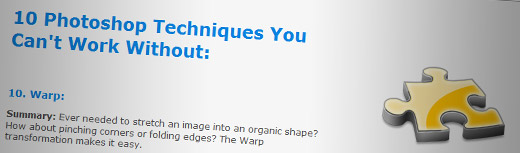
10 Photoshop Techniques You Can't Work Without - screen shot.

15. Guide to Halftone Pattern

This tutorial will go through the different steps and settings to achieve a halftone pattern.

Guide to Halftone Pattern - screen shot.

16. Clone out distracting backgrounds in Photoshop (and Elements)

Clone out distracting backgrounds in Photoshop (and Elements) - screen shot.

17. How to Use Fit Image in Photoshop – Video Tutorial

How to Use Fit Image in Photoshop - Video Tutorial - screen shot.

18. Top 10 Killer Photoshop Combo Moves

Master these killer Photoshop keyboard combos and you’ll find yourself with more time for the important things. These combos assume you’re using Photoshop CS3 on Windows platform with default keyboard shortcuts.

Top 10 Killer Photoshop Combo Moves - screen shot.

19. 5 Techniques for Enhancing Contrast in Digital Photos

5 Techniques for Enhancing Contrast in Digital Photos - screen shot.

20. How To Make Digital Photos Look Like Lomo Photography

How To Make Digital Photos Look Like Lomo Photography - screen shot.

21. Warning: These 9 Photoshop Techniques May Result In Great Photos

Post-Processing (or photo editing) is what makes a good photo great. Cameras produce a good starting point, but post-processing is where the magic happens. Try out some of these creative post-processing tricks to boost your artistic style.

Warning: These 9 Photoshop Techniques May Result In Great Photos - screen shot.


Wednesday, 10 July 2013

12 Beginner Tutorials for Getting Started with Adobe Illustrator

Illustrator's huge array of digital drawing features makes it a favorite amongst illustrators and print designers, but for those just starting out, the application can be intimidating. To help set you on your path to Illustrator mastery, here are some great beginner-level Illustrator tutorials that cover the fundamental tools and techniques.
If you have tips for aspiring Illustrator pros, share them in the comments below.

1. Getting Started in Illustrator

First thing's first: You need to familiarize yourself with Illustrator's graphical user interface. This quick and easy-to-read tutorial talks about Illustrator's workspace, pointing to areas such as the Tools panel, the Status bar, the Artboard where you craft your vectors, and so on. It also touches upon how to create your first Illustrator document, as well as the different items you can find within the Tools panel.

2. Illustrator's Pen Tool: The Comprehensive Guide

The primary drawing feature of Illustrator is the Pen tool. If you have aspirations of becoming an Illustrator ninja, you'll need to have a strong command of this tool. This Illustrator tutorial from Vectortuts+ (a leading vector graphics tutorial site) covers all the things you need to know about this powerful, but oftentimes daunting, tool.
The tutorial covers the concept of Bezier curves, which are used to draw shapes with smooth curves, the need-to-know keyboard shortcuts, and even provides a practice sheet that you can download and import into Illustrator to help you practice your vector-drawing skills.

3. Fun with Illustrator’s Blend Tool

The Blend command is deceptively simple in function. It takes two or more shapes or colors, and then blends them together smoothly. But as this Illustrator tutorial will show you, the Blend command is a very effective feature for crafting stunning graphics effects quickly and easily.

4. Adobe Illustrator Tips: Live Trace

Live Trace, which appeared in Adobe Illustrator CS2, is a game-changer. Before Live Trace, an artist sketching an art piece using pen/pencil and paper would have to scan their work into Illustrator, then spend hours manually tracing it with the Pen tool and other Illustrator functions.
When Live Trace was introduced, this process was made simpler through automation, saving you precious hours. From sketch drawings to photographs that need to be converted to vector graphics — Live Trace is an excellent option to try. This tutorial goes over the process of using Live Trace by using a stock headshot photo, discussing how to execute Live Trace, the various options, as well as showing off a handful of examples of where Live Trace has been used in existing artworks.

5. Illustrator's Type Tool: A Comprehensive Introduction

Illustrator is also a popular graphics application for print designers. From logos, business cards, and brochures, all the way up to posters and large billboards, Illustrator can help you make flexible and scalable designs.
A big part of print design is quite obviously text. This Illustrator tutorial will help you begin to explore the Type tool. It covers ways you can set text on vector paths for unconventional text flows, talks about the associated panels such as the Character and Paragraph panel, and provides useful keyboard shortcuts.

6. The Power (and Ease) of Patterns in Illustrator

Using patterns allows you to make repeating graphics. Experimenting with patterns can lead to excellent artwork that looks like it took days to complete.
Creating custom pattern brushes and applying them to vector shapes is covered in this Illustrator tutorial.

7. Mastering Illustrator Effects

Effects in Illustrator allow you to add all sorts of wonderful graphic treatments to your artwork. From applying 3D effects to creating faux colored pencil looks, this set of Illustrator features will let you rapidly enhance your work with a few clicks of the mouse.
If you'd like to discover the abilities of Illustrator effects, check out the above tutorial, which discusses various processes — such as Roughen and Scribble — as well as the Appearance panel, which allows you to modify applied effects, among other helpful tips.

8. Everything about Gradients

The Gradient panel in Illustrator is a wonderful feature for applying color and pattern gradients to your work. Gradients allow you to stylize your graphics such that they have smoothly blended fills or strokes.
Learn everything you need to know to get started with gradients from this tutorial, which discusses topics like applying gradients, modifying the angle and direction of the gradients, saving gradient swatches, and more.

9. The Stroke Panel

In Photoshop, a sibling of Illustrator, strokes (creating an outline around the edge of an object) seem like an afterthought. But in Illustrator, where your vector paths take center stage, the stroke feature is very important to master.
This Adobe Illustrator tutorial covers the use of the Stroke panel in creating vector objects.

10. Pathfinder: Explained

The Pathfinder panel is a popular time saving feature for working with shapes and paths. This panel is a collection of commands that allow you to unite, divide, and subtract two or more shapes, among other functions. Utilizing these commands gives you the ability to draw complex vector graphics using basic shape tools.
Learn how to use the Pathfinder panel with this excellent Illustrator tutorial.

11. The Power of Smart Guides in Illustrator

Don't have a steady hand? Having trouble drawing shapes that align with one another? Smart guides give you snapping features that will enable you to draw objects more accurately.
Explore the fundamentals of Illustrator's smart guides through this beginner-friendly tutorial.

12. How to Make a Custom Illustrator Brush

Brushes in Illustrator are a quick way to save objects that you will reuse later in your projects. Art brushes, for example, take a vector object that you've drawn and allow you to then apply those objects later as strokes or fills of other vectors.
In this step-by-step guide, you will discover the awesomeness of custom brushes in Illustrator.
These 12 tutorials will set you on your path to Illustrator mastery. If you’ve had success with other tutorials not on this list, let us know about them in the comments below.